


Update QuickBooks Desktop to 2024: Latest Features & Security Updates

- By Jonathan Browns
- Dec 22, 2025
- Accounting
- 7 min read
Is your QuickBooks application working slowly or starting to freeze frequently? This issue may occur while running the outdated QuickBooks Desktop version. So, here comes a time when you need to update QuickBooks Desktop to 2024 and address such issues. By getting the latest QuickBooks updates installed, you can get access to the security updates, new features, better performance, and compliance with the latest tax laws. Moreover, you can also get access to the live support facility for getting assistance regarding the issues faced with QuickBooks.
Herein, in this guide, we will walk through the step-by-step instructions to update QuickBooks Desktop 2023 to 2024.
Pre-Considerations Before You Update QuickBooks Desktop 2023 to 2024
Before you update QuickBooks Desktop 2023 to 2024, you must consider a few factors. As a result, it will help you install the latest updates smoothly.
1. System Requirements
Before you update QuickBooks Desktop to 2024, make sure that your system is compatible enough to run the application uninterrupted. For that, you must review the system requirements for QuickBooks Desktop 2024.
2. Back up the Company file
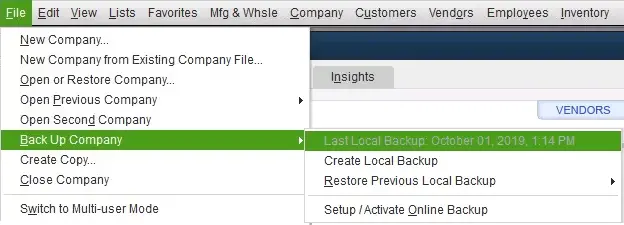
Moreover, it is also essential to prepare the backup QuickBooks company file before performing the update. This is so that you can keep your sensitive company data safe without causing any damage or threat.
3. Proper Admin Rights
Moreover, it is essential that you download the QuickBooks Desktop updates with the proper Windows admin rights.
Stepwise Instructions to Verify Which QuickBooks Desktop version You are using
Before performing the QuickBooks update process, it’s essential to review which QuickBooks version you are presently using. For that, you must carry on with the instructions given below.
A. QuickBooks Desktop For Windows
- Access the QuickBooks Desktop application and hit the F2 or Ctrl + 1 keys.
- By this, you can launch the Product Information window.
- Afterwards, look for your current version and release.
- The new version available for the QuickBooks Desktop release is:
- QuickBooks 2024 R16_74
- QuickBooks 2023 R16_61
B. QuickBooks Desktop For Mac
- Start the process by opening the QuickBooks Desktop for Mac application.
- After this, hit the Command + 1 key together to access the Product Information window.
- Look for the current version and release you are using.
- The following are the current releases available for each version of QuickBooks Desktop for Mac.
- QuickBooks Mac Plus 2024 R10.2
- QuickBooks Mac Plus 2023 R7.6
How to Update QuickBooks Desktop to 2024 Using Simple Steps?
Are you still using the 2022 or 2023 version of QuickBooks? Then, it’s high time to update QuickBooks Desktop 2022 to 2024. Use the following instructions for the same.
1. Update QuickBooks Desktop For Windows
QuickBooks will inform you whenever the new update is released. All you require is to download and then install the available updates on your system. The update will eventually get started if you shut down the product and turn off your PC.
A. Manually Update the QuickBooks Application
- Whenever the new QuickBooks update is released, you must look for the Update Available link from the status bar.
- After this, hit the Update Available option and hit the Install Now tab.
- Thereon, you must hold on for some time for the update to get installed.
Note: If you have a Payroll Subscription, then you need to download the latest payroll tax table to run the QuickBooks payroll smoothly.
B. Download the QuickBooks Updates from the Internet
To get the QuickBooks Updates from the internet, follow the steps below.
- Initially, access the Downloads & Updates page from Intuit’s website.
- After this, click the Standard setup option and pick the Country name by clicking the Select Country drop-down menu.
- Thereon, pick your product by clicking the Select Product drop-down arrow.
- Now, you must pick the QB version (year) from the Select Version drop-down list and hit the Search tab.
- Afterwards, browse to the Search option and hit the Get the latest updates option.
- Once you see that the file is done finishing the download process, double-click on it. Then begin the installation process.
- Finally, carry on with the instructions given on the screen to accomplish the installation.
2. Update QuickBooks Desktop For Mac
To install the latest update for QuickBooks Desktop on Mac, perform these steps.
- Initially, launch the QuickBooks Desktop application and hit the Browse option.
- After this, tap on the Check for QuickBooks Updates option.
- Later on, hit the Install and Relaunch tab.
Note: To verify that you install the updates automatically in the future, hit the Automatically download and install updates in the future.
What If You Fail to Install the QuickBooks Desktop Update?
Are you having trouble installing the latest QuickBooks Desktop update? Then stop worrying. Instead, perform the troubleshooting methods given below to install the updates smoothly.
For Windows
It might be possible that QuickBooks may fail to update to the next release number or encounter issues during downloading or installation. Furthermore, use the steps instructed below to fix the issue.
Method 1: Re-Download the QuickBooks Desktop Update
You have to resume these steps a couple of times to check if the release number advances.
- Primarily, switch to the Help menu and choose the Update QuickBooks Desktop option.
- After this, hit the Update Now tab and then click the Get Updates option.
- Exit and then relaunch the QuickBooks application for the seamless installation of the update.
If you see that the release number doesn’t advance, then try applying another solution given below.
Method 2: Close the Following Processes
Sometimes, the interruption due to background running processes may interrupt the QuickBooks update process. So, to fix the issue, you must shut down the following processes.
- Exit from the QuickBooks application.
- After this, right-click on the taskbar and tap on Task Manager.
- Right beneath the Details tab, browse for the background processes and hit the End Task for each one of them.
- QBW32.exe or QBW.exe
- QBCFMonitorService.exe
- qbupdate.exe
- QBDBMgr.exe or QBDBMgrN.exe
- QBMapi32.exe
- Next, you must right-click on the QuickBooks shortcut and hit Run as Administrator.
- At last, try to run the update and see whether you are able to get the latest QuickBooks Desktop updates.
For Mac
If your update won’t advance to the next release number, then users may face trouble installing the QuickBooks Desktop on Mac. Perform the solutions given below to address the issue.
Method 1: Re-Download the QuickBooks Desktop Updates
You need to perform the following steps a couple of times to check the release number advances.
- Initially, launch the QuickBooks menu and tap on the Check for QuickBooks Updates option.
- After this, hit the Install and Relaunch option.
If the release number doesn’t advance, then move to the next solution.
Method 2: Download & Install the Updates from the Download Site
- Visit the Downloads & Updates page and choose the Standard Setup tab.
- Choose the Country name by clicking the Select Country option.
- After this, pick the Product Name from the Select Product drop-down menu.
- Thereon, choose your version (year) and tap on the Search option.
- Browse to the Get the latest updates tab.
- Once the download process is over, launch the file to install the QuickBooks Desktop update. Once the install is complete, relaunch your PC.
Conclusion
Through this blog’s help, we hope that you can easily update QuickBooks Desktop to 2024. Thus, it allows you to use the improved features, security updates, and better performance of the QuickBooks software. If you still have any issues, then feel free to connect with our BizBooksAdvice professionals for assistance.
Frequently Asked Questions (FAQ’s):-
Question 1: How do I activate QuickBooks Desktop 2024?
Ans. To activate QuickBooks Desktop to 2024, perform the following steps:
- Launch the QuickBooks application and then click the Help menu.
- Choose the Activate QuickBooks option.
- Furthermore, use the steps given on the screen to verify the details.
Question 2: Why should I update to QuickBooks Desktop 2024?
Ans. You must update to QuickBooks Desktop 2024 to download the latest security patches, performance improvements, bug fixes, and new features. Moreover, it also helps you get the live support facility so that you can get the best possible assistance regarding the QuickBooks application.
Question 3: What should I do if my QuickBooks update fails?
Ans. If your QuickBooks update fails, then you must try to restart your computer. Also, you can try to run QuickBooks as Administrator, temporarily disable the antivirus software, and run the QuickBooks Tool Hub.
Question 4: Do I need to update my payroll tax tables after upgrading?
Ans. Yes, after completing the upgrade process, it is essential to update my payroll tax table to get accurate payroll calculations.
Question 5: Can I update QuickBooks Desktop 2024 on multiple computers using one license?
Ans. The single-user licenses allow you to install the software on one system, and the multi-user licenses enable installations on multiple devices.
About The Author

Jonathan Browns
Jonathan Brown is a trained QuickBooks professional with 10 years of experience in the accounting sector. Moreover, he is passionate about helping businesses reduce the stress of managing accounts. Also, he is proficient in assisting entrepreneurs and small business owners to use QuickBooks and enhance their accounting experience.

QuickBooks Desktop, Payroll or Enterprise
Advanced Support for QuickBooks Desktop, Payroll & Enterprise Solutions
From payroll tax setup, direct deposit issues to Enterprise performance tuning and Desktop upgrades - our QuickBooks experts provide accurate and stepwise assistance. Get dependable support designed to minimize downtime and maximize efficiency.
Recent Posts
-
How to Resolve QuickBooks Error 176109 Instantly?
-
QuickBooks Error H101: Why It Happens & How to Fix It Quickly?
-
QuickBooks Error 6147: Proven Solutions to Fix Backup & Restore Issues
-
Understanding QuickBooks Error 12007: A Comprehensive Guide
-
How to Setup QuickBooks Install Diagnostic Tool in Easy Steps?